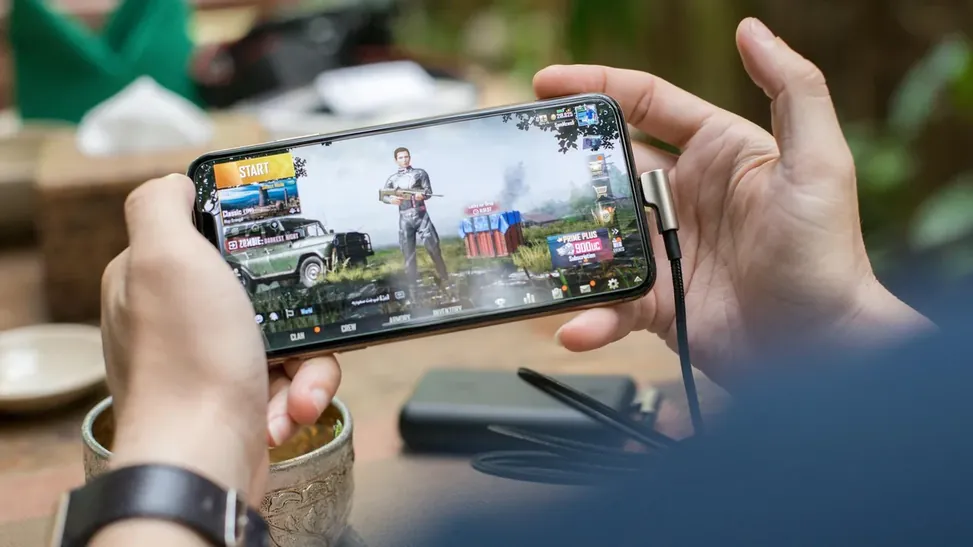
Whether it is a boss finally beaten, a racing line finally perfected, or a glitch too strange to describe, PSP moments are worth capturing. PPSSPP APK players have two routes: still screenshots for single frames and full screen recording for clips, and Android provides most of the machinery for both.
This guide covers clean capture settings, honest quality trade-offs, and how recording affects performance while you play. The main PPSSPP APK Download for Android page brings the download, the app facts and the FAQs together in one place.
Taking Screenshots in PPSSPP
PPSSPP can save screenshots of the running game, stored as images inside the PSP folder's screenshot directory. Screenshots capture the rendered frame, so they reflect your rendering resolution: capture at high resolution for wallpapers and at native resolution for authentic PSP comparisons.
Map the screenshot function to an easy control if your build allows it, so capturing a moment does not pause your hands during gameplay.
- Screenshots save inside the PSP folder
- Capture resolution follows rendering resolution
- Native resolution gives authentic PSP shots
- High resolution suits wallpapers and posts
- Find images under the screenshots subfolder
Recording Gameplay With Android Screen Recorder
Most modern Android phones include a built-in screen recorder in the quick settings panel. It captures PPSSPP along with system audio on many devices, needs no extra app, and is the simplest path to shareable clips.
Raise rendering resolution to your target quality first.
Open quick settings and add Screen Record if missing.
Choose device audio so game sound is captured.
Start recording, then switch to PPSSPP and play.
Stop from the notification shade when finished.
Trim the clip in your gallery editor before sharing.
Resolution and Frame Rate Choices for Clips
Record at the resolution you will publish. Most platforms favor 1080p; recording a 4x-rendered game into a 720p recorder wastes performance without improving the final video.
Thirty frames per second suits most PSP games because many originally ran at 30. Games patched or built for 60 deserve a 60 FPS recording if your phone sustains it without stutter.
- Match render and record resolutions
- 30 FPS fits most original PSP games
- 60 FPS only when performance is stable
- Stutter in game becomes stutter in video
- Short test clips prevent ruined sessions
Capturing Game Audio Cleanly
Internal audio capture depends on your Android version and phone maker. If the recorder only offers microphone input, your clip will include room noise and button taps instead of clean game sound.
Test with a ten-second clip and headphones playback before recording anything important. If internal audio is unavailable, record video first and accept microphone sound, or play the moment again in a quiet room.
- Test audio capture before real sessions
- Microphone mode records room noise too
- Headphones help you judge captured quality
- Quiet rooms rescue microphone recordings
- Keep phone volume steady during capture
Sharing Clips and Staying Legal
Gameplay clips of your own play sessions are yours to share on the usual platforms. Keep uploads to your own gameplay of games you own, and avoid redistributing game files, save packs, or full copyrighted soundtracks as standalone downloads.
A short description naming the game, your settings, and that the footage is emulated helps viewers and keeps expectations honest.
- Share your own gameplay only
- Never bundle game files with clips
- Credit settings in the description
- Trim menus and loading for viewers
- Keep originals before platform compression
Organizing a Growing Capture Library
Captures pile up inside the PSP folder and the gallery. A monthly five-minute sort, moving keepers into dated folders by game and deleting failed takes, keeps the archive useful instead of archaeological.
Rename the best clips with the game and moment in the filename. Future searches find words, not timestamps.
- Monthly five-minute sorts
- Dated folders by game
- Delete failed takes freely
- Rename keepers descriptively
- Back up favorites with your saves
Capturing for Guides and Sharing Settings
If you share settings help or write about your games, capture the settings screens and the resulting gameplay as a pair. Viewers trust advice they can compare, and your future self gets a visual record of what worked on which game.
Keep text readable: capture at higher resolution for stills even if your videos publish smaller.
- Settings screen plus gameplay pairs
- Visual records beat memory
- Higher resolution for stills
- Show the game and build version
- Honest captures build trust
Conclusion
Capturing PPSSPP APK moments is mostly preparation: set the rendering resolution to your publishing target, confirm the recorder captures internal audio with a short test, and give the phone one less job by lowering a setting if motion stutters.
Do that, and screenshots and clips become a natural extension of play, preserving the boss kills and photo finishes of your PSP library in quality worth rewatching. The complete treatment of that side of the setup sits in PPSSPP APK HD Texture Packs Guide: Sharper PSP Graphics on Android. That side of the setup is covered in full in Best PPSSPP APK Graphics Settings for HD PSP Gameplay.